

Documentation Index
Fetch the complete documentation index at: https://docs.praxis-ai.com/llms.txt
Use this file to discover all available pages before exploring further.
Model Usage
You can select which AI model suits you best for different uses from the list of models offered by the platform or plug in your own custom AI model. Supported usages include:- Conversation
- Image Analysis
- Image Generation
- Embeddings Generation
- Audio Transcription
- Text to Speech
- Document Summarization
- Speech to Speech (Conversation / Realtime)
- Moderation
Models used for Conversation must support Tools and streaming simultaneously.
How Praxis AI Uses Models
Praxis AI can orchestrate multiple providers and models in parallel using a unified interface:- Configure several providers in Personalization and AI Models.
- Assign preferred models to each Model Use (Conversation, Images, Audio, etc.).
- Overwrite the conversation provider for each Assistant
Model Selection
Default for Your Digital Twin
Each Digital Twin in Praxis AI can use different models optimized for its domain. To select or change models:- Go to the Admin section.
- Edit your Digital Twin.
- Open the Personalization and AI Models section.
- Review or change the model used for each Model Use (Conversation, Images, Audio, etc.).
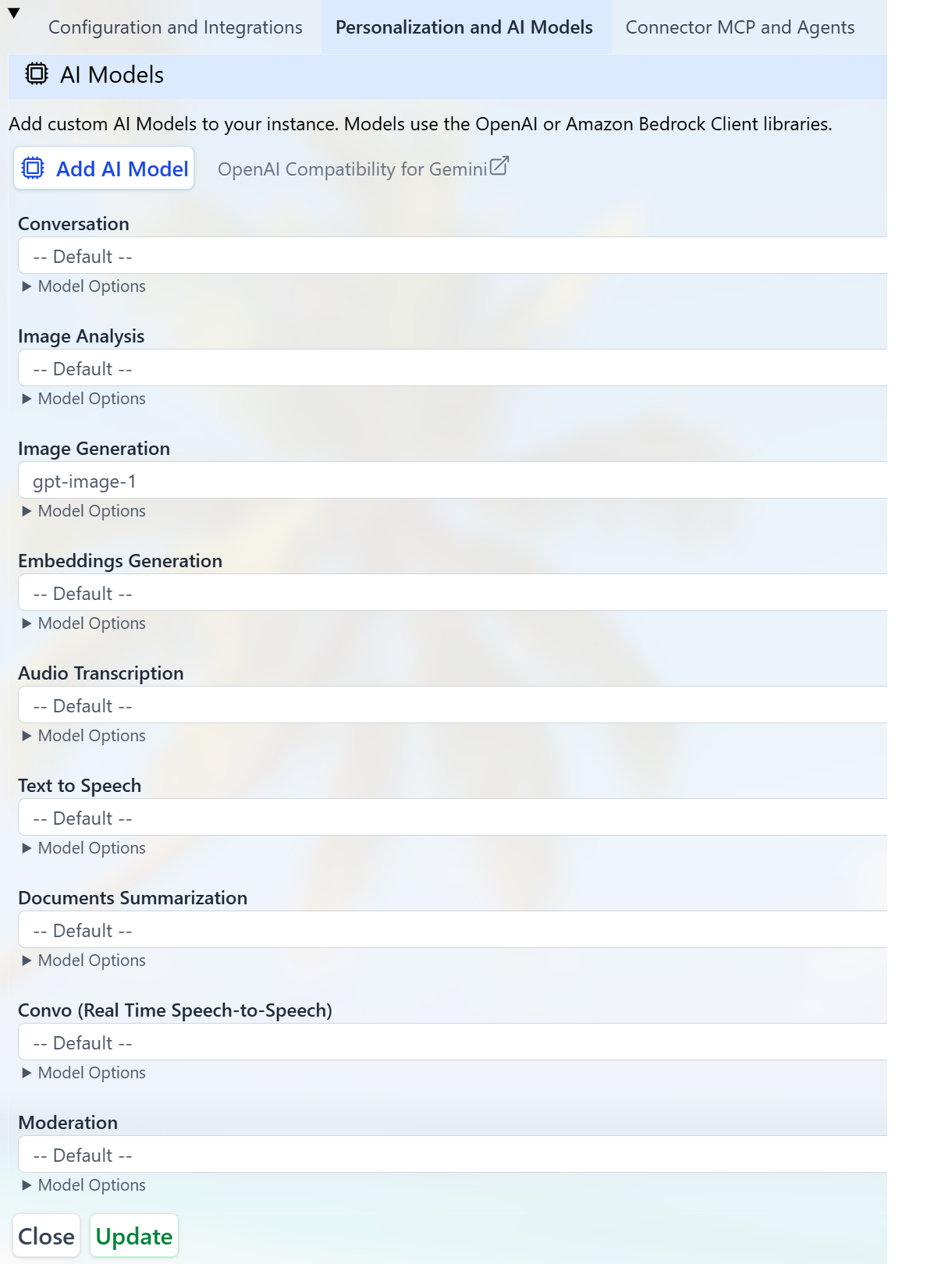
Conversation at Runtime
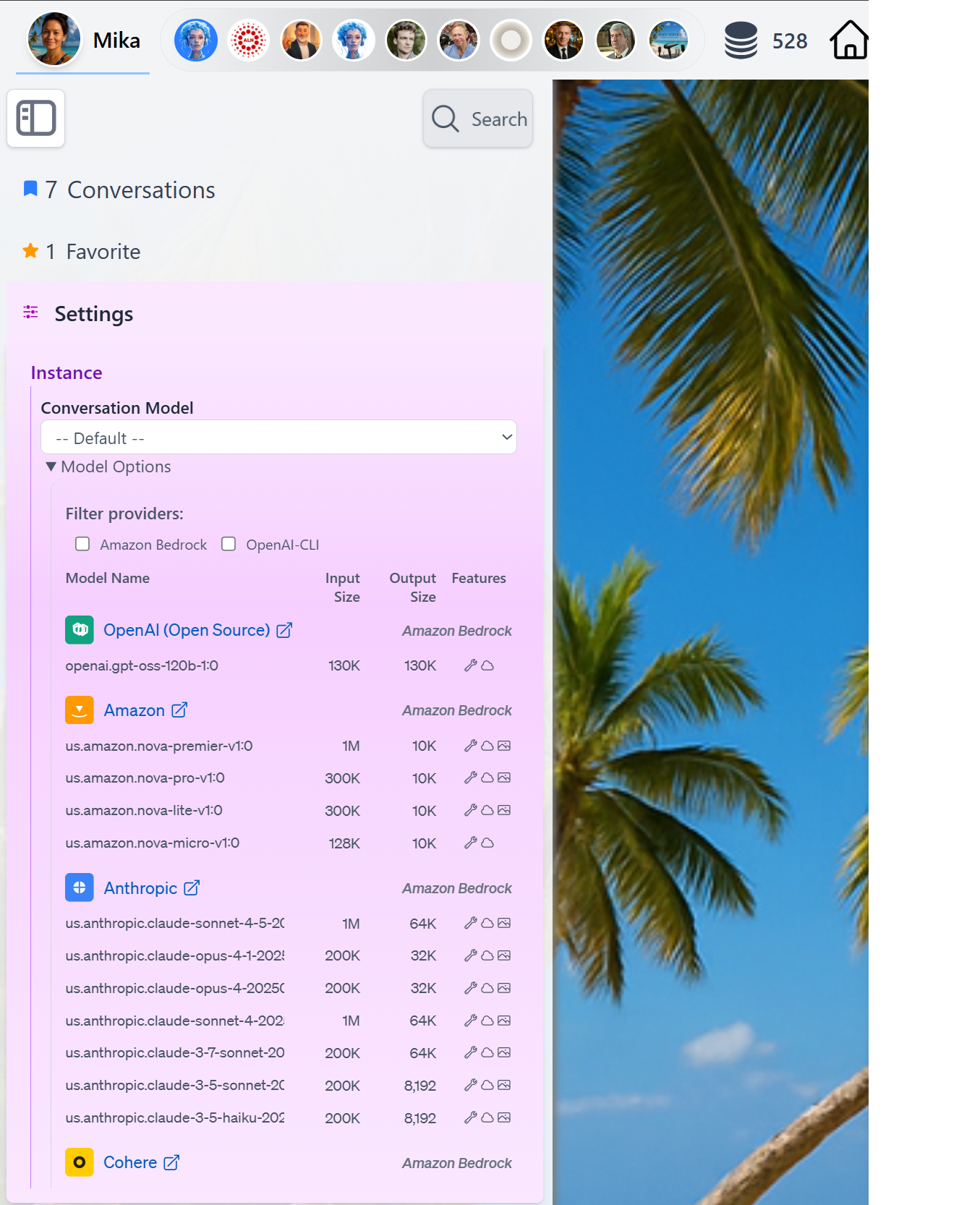
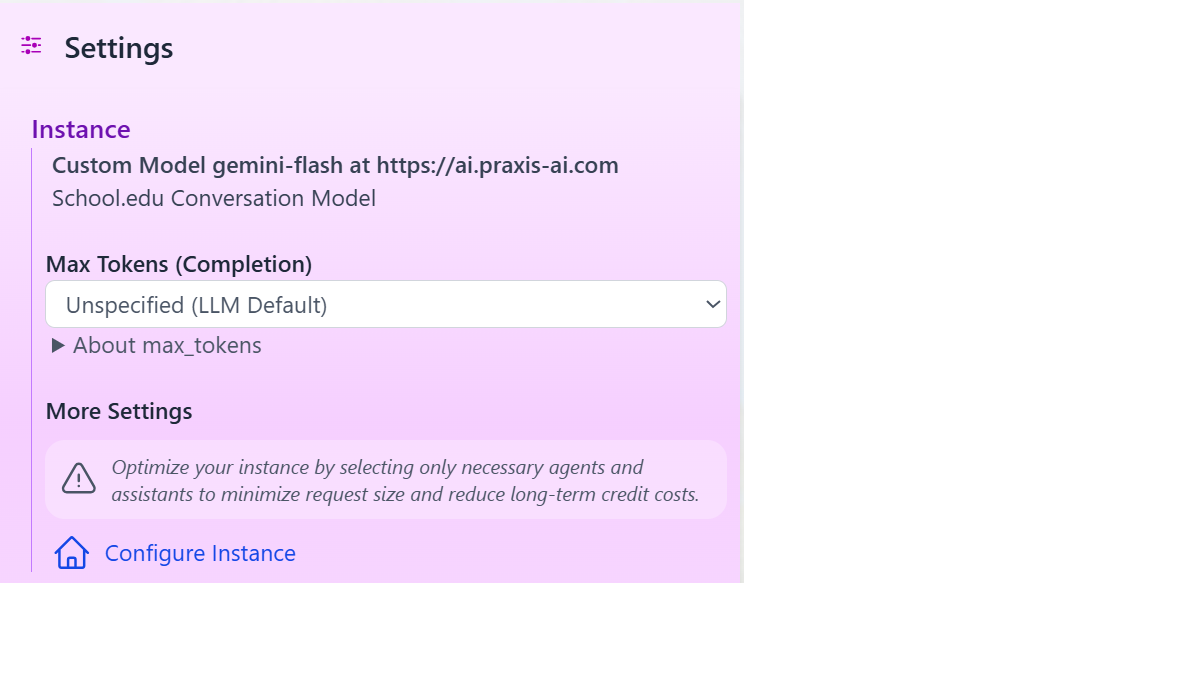
At runtime, you can easily switch the LLM used forConversation by accessing the Settings in the Side Bar panel and review model capabilities by clicking the Model Options detail
Specific to each assistants
You can specify which Conversation model to use for each assistants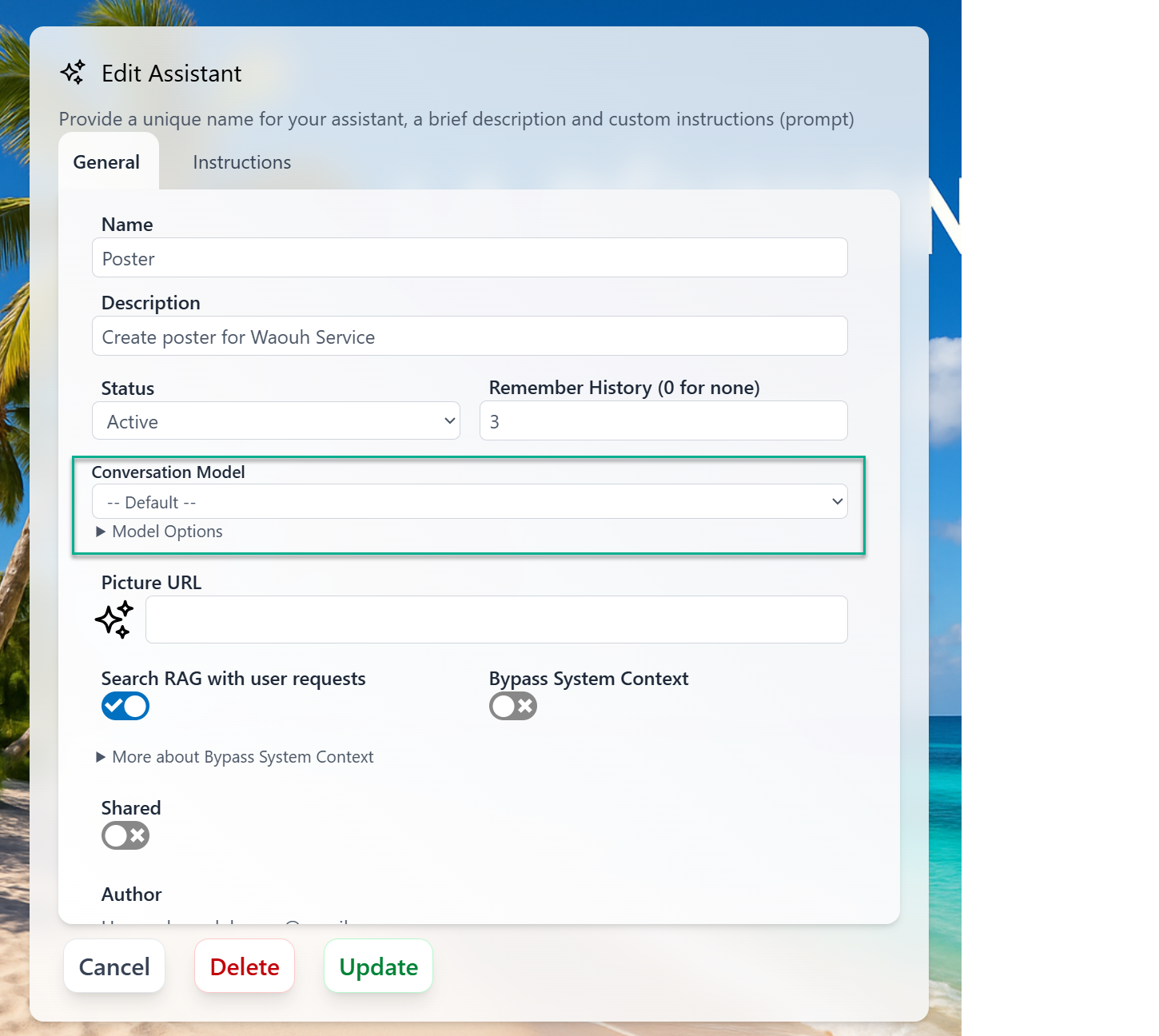
- Use Case
- Assistant Specific model
- Token budget and cost constraints
- Model availability and latency
- User preferences and history
Platform Models
Praxis AI middleware offers access to a broad catalog of state-of-the-art AI models. You can select the model that best fits your needs based on performance, cost, and capabilities. Thedefault model is configured to use the latest, most capable model available on the platform. In most cases, you should keep default selected unless you have a specific requirement (for example, strict cost control, specific provider, or latency constraints).
Models can be accessed using:
- The OpenAI Client
- Or through Amazon Bedrock
Provider-Based Models
Praxis AI exposes conversation and related capabilities (vision, audio, embeddings, moderation, realtime) through multiple provider types:- Amazon Bedrock
- OpenAI-Compatible Clients (OpenAI, Cohere)
- Anthropic Direct API
- Google Gemini Native SDK
- Mistral AI Native SDK
- xAI Native API
- Stability AI Native API
Amazon Bedrock
Amazon Bedrock
- Anthropic
- Amazon
- OpenAI (Open Source)
- Meta
- Cohere
- Mistral
Anthropic models via Bedrock are platform models of choice, mainly for Conversation and Image Analysis. Models marked with Extended support the optional 1M token context window (see Inference Settings).
| Model Name | Status | Capabilities | Input (tokens) | Output (tokens) | Thinking | Typical Uses |
|---|---|---|---|---|---|---|
global.anthropic.claude-sonnet-4-6 | New | Tools, Streaming, Vision | 1,000,000 | 64,000 | Yes (Extended) | Conversation, Image Analysis, Summary |
us.anthropic.claude-sonnet-4-6 | Default | Tools, Streaming, Vision | 1,000,000 | 64,000 | Yes (Extended) | Conversation, Image Analysis, Summary |
us.anthropic.claude-sonnet-4-5-20250929-v1:0 | Current | Tools, Streaming, Vision | 200,000 | 64,000 | Yes (Extended) | Conversation, Image Analysis, Summary |
us.anthropic.claude-sonnet-4-20250514-v1:0 | Deprecated | Tools, Streaming, Vision | 200,000 | 64,000 | Yes (Extended) | Conversation, Image Analysis, Summary |
us.anthropic.claude-3-7-sonnet-20250219-v1:0 | Deprecated | Tools, Streaming, Vision | 200,000 | 64,000 | Yes | Conversation, Image Analysis, Summary |
us.anthropic.claude-3-5-sonnet-20241022-v2:0 | Deprecated | Tools, Streaming, Vision | 200,000 | 8,192 | — | Conversation, Image Analysis |
global.anthropic.claude-opus-4-7 | New | Tools, Streaming, Vision | 1,000,000 | 128,000 | Yes | Conversation, Image Analysis, Summary |
us.anthropic.claude-opus-4-7 | New | Tools, Streaming, Vision | 1,000,000 | 128,000 | Yes | Conversation, Image Analysis, Summary |
global.anthropic.claude-opus-4-6 | Current | Tools, Streaming, Vision | 1,000,000 | 128,000 | Yes (Extended) | Conversation, Image Analysis, Summary |
us.anthropic.claude-opus-4-6-v1 | Current | Tools, Streaming, Vision | 1,000,000 | 128,000 | Yes (Extended) | Conversation, Image Analysis, Summary |
us.anthropic.claude-opus-4-5-20251101-v1:0 | Current | Tools, Streaming, Vision | 200,000 | 64,000 | Yes | Conversation, Image Analysis, Summary |
us.anthropic.claude-opus-4-1-20250805-v1:0 | Deprecated | Tools, Streaming, Vision | 200,000 | 32,000 | Yes | Conversation, Image Analysis |
us.anthropic.claude-opus-4-20250514-v1:0 | Deprecated | Tools, Streaming, Vision | 200,000 | 32,000 | Yes | Conversation, Image Analysis |
us.anthropic.claude-haiku-4-5-20251001-v1:0 | Current | Tools, Streaming, Vision | 200,000 | 64,000 | Yes | Conversation, Summary, Image Analysis |
us.anthropic.claude-3-5-haiku-20241022-v1:0 | Deprecated | Tools, Streaming, Vision | 200,000 | 8,192 | — | Conversation, Image Analysis |
Deprecated models will be removed in a future release. Migrate to a newer model. When a deprecated model is removed, any assistant or configuration referencing it will automatically fall back to the institution’s default model.
Stability AI models are no longer available through Bedrock. They are now served via the Stability AI Native API — see the dedicated accordion below.
OpenAI-Compatible Clients
OpenAI-Compatible Clients
- OpenAI
- ElevenLabs
- Google Gemini
- Anthropic (Direct API)
- Cohere (Direct API)
These models are configured against the OpenAI API and used across Conversation, Image Analysis, Summary, Audio, TTS, Moderation, and Realtime.
OpenAI Voices: Cedar (New), Marin (New), Alloy, Ash, Ballad, Coral, Echo, Sage, Shimmer, Verse
Conversation / Vision / Summary
| Model Name | Status | Capabilities | Input (tokens) | Output (tokens) | Thinking | Typical Uses |
|---|---|---|---|---|---|---|
gpt-5.4 | New | Tools, Streaming, Vision, MCP | 1,050,000 | 128,000 | Yes | Conversation, Image Analysis, Summary |
gpt-5.4-pro | New | Tools, Streaming, Vision, MCP | 1,050,000 | 128,000 | Yes | Conversation, Image Analysis, Summary |
gpt-5.4-mini | New | Tools, Streaming, Vision, MCP | 400,000 | 128,000 | Yes | Conversation, Image Analysis, Summary |
gpt-5.4-nano | New | Tools, Streaming, Vision, MCP | 400,000 | 128,000 | Yes | Conversation, Image Analysis, Summary |
gpt-5.2 | Current | Tools, Streaming, Vision, MCP | 400,000 | 128,000 | Yes | Conversation, Image Analysis, Summary |
gpt-5.1 | Current | Tools, Streaming, Vision, MCP | 400,000 | 128,000 | Yes | Conversation, Image Analysis, Summary |
gpt-5-2025-08-07 | Deprecated | Tools, Streaming, Vision, MCP | 272,000 | 128,000 | Yes | Conversation, Image Analysis, Summary |
gpt-5-mini | Current | Tools, Streaming, Vision, MCP | 400,000 | 128,000 | Yes | Conversation, Image Analysis, Summary |
gpt-5-nano-2025-08-07 | Current | Tools, Streaming, Vision, MCP | 400,000 | 128,000 | Yes | Conversation, Image Analysis, Summary |
gpt-5 | Deprecated | Tools, Streaming, Vision, MCP | 272,000 | 128,000 | Yes | Conversation, Image Analysis, Summary |
gpt-4.1 | Deprecated | Tools, Streaming, Vision, MCP | 1,047,576 | 32,768 | — | Conversation, Image Analysis, Summary |
gpt-4.1-mini | Deprecated | Tools, Streaming, Vision, MCP | 1,047,576 | 32,768 | — | Conversation, Image Analysis, Summary |
gpt-4.1-nano | Deprecated | Tools, Streaming, Vision, MCP | 1,047,576 | 32,768 | — | Conversation, Image Analysis, Summary |
gpt-4o | Deprecated | Tools, Streaming, Vision | 128,000 | 16,384 | — | Conversation, Image Analysis, Summary |
gpt-4o-mini | Deprecated | Tools, Streaming, Vision | 128,000 | 16,384 | — | Conversation, Image Analysis, Summary |
o4-mini-deep-research | Specialized | Streaming, Vision, MCP | 200,000 | 100,000 | Yes | Deep research, Image Analysis |
o4-mini | Current | Tools, Streaming, Vision, MCP | 200,000 | 100,000 | Yes | Conversation, Image Analysis |
o3-deep-research | Specialized | Streaming, Vision, MCP | 200,000 | 100,000 | Yes | Deep research, Image Analysis |
o3-pro | Deprecated | Tools, Streaming, Vision, MCP | 200,000 | 100,000 | Yes | Conversation, Image Analysis |
o3 | Deprecated | Tools, Streaming, Vision, MCP | 200,000 | 100,000 | Yes | Conversation, Image Analysis |
o3-mini | Deprecated | Tools, Streaming, Vision | 200,000 | 100,000 | Yes | Conversation, Image Analysis |
o1 | Deprecated | Tools, Streaming, Vision | 200,000 | 100,000 | Yes | Conversation, Image Analysis |
Image Generation
| Model Name | Status | Capabilities | Typical Uses |
|---|---|---|---|
gpt-image-1.5 | New | Vision | Image Generation |
gpt-image-1 | Current | Vision | Image Generation |
gpt-image-1-mini | Current | Vision | Image Generation |
dall-e-3 | Current | Vision | Image Generation |
Video Generation
| Model Name | Status | Capabilities | Typical Uses |
|---|---|---|---|
sora-2 | New | Text to Video | Video Generation (4 / 8 / 12s) |
sora-2-pro | New | Text to Video | Video Generation (higher fidelity, selected when quality='high') |
Embeddings
| Model Name | Input (tokens) | Vector Dimensions | Typical Uses |
|---|---|---|---|
text-embedding-3-small | 8,191 | 1,536 | Embeddings |
text-embedding-3-large | 8,191 | 3,072 | Embeddings |
Audio Transcription and Translation
| Model Name | Input (Hz) | Output (tokens) | Typical Uses |
|---|---|---|---|
whisper-1 | — | — | Audio Analysis |
gpt-4o-mini-transcribe | 16,000 | 2,000 | Audio Analysis (Default) |
gpt-4o-transcribe | 16,000 | 2,000 | Audio Analysis |
gpt-4o-transcribe-diarize | 16,000 | 2,000 | Audio Analysis (Speaker ID) |
Text-to-Speech (TTS)
| Model Name | Typical Uses |
|---|---|
tts-1 | TTS |
tts-1-hd | TTS |
gpt-4o-mini-tts | TTS |
Moderation
| Model Name | Typical Uses |
|---|---|
omni-moderation-latest | Moderation |
Real-Time Speech-to-Speech (RT / STS)
| Model Name | Status | Input Tokens | Output Tokens | Reasoning | Typical Uses |
|---|---|---|---|---|---|
gpt-realtime-2 | Default | 128,000 | 32,000 | Yes | Realtime voice agent (reasoning, GPT-5-class) |
gpt-realtime-1.5 | Current | 32,000 | 4,096 | — | Realtime voice agent |
gpt-realtime | Current | 32,000 | 4,096 | — | Realtime voice agent |
gpt-realtime-mini | Current | 32,000 | 4,096 | — | Realtime voice agent |
gpt-4o-realtime-preview | Deprecated | 32,000 | 4,096 | — | Realtime voice agent |
gpt-4o-mini-realtime-preview | Deprecated | 16,000 | 4,096 | — | Realtime voice agent |
More information:
https://platform.openai.com/docs/models
Mistral AI (Native SDK)
Mistral AI (Native SDK)
Mistral AI models are accessed through the native Mistral SDK (
@mistralai/mistralai) and are used for Conversation, Image Analysis, Summary, Audio, TTS, Embeddings, and Moderation. Requires an API key.Conversation / Vision / Summary
| Model Name | Label | Capabilities | Input (tokens) | Output (tokens) | Typical Uses |
|---|---|---|---|---|---|
mistral-large-latest | Default | Tools, Streaming, Vision | 128,000 | 8,192 | Conversation, Image Analysis, Summary |
mistral-medium-2508 | — | Tools, Streaming, Vision | 131,072 | 8,192 | Conversation, Image Analysis, Summary |
mistral-small-2506 | — | Tools, Streaming, Vision | 128,000 | 8,192 | Conversation, Image Analysis, Summary |
pixtral-large-latest | Vision | Tools, Streaming, Vision | 128,000 | 8,192 | Conversation, Image Analysis |
magistral-medium-2509 | Reasoning | Tools, Streaming, Vision | 128,000 | 8,192 | Conversation, Image Analysis, Summary |
magistral-small-2509 | Reasoning Fast | Tools, Streaming, Vision | 40,000 | 8,192 | Conversation, Image Analysis, Summary |
codestral-2508 | Code | Tools, Streaming, Vision | 256,000 | 8,192 | Conversation, Summary |
devstral-medium-2507 | Developer | Tools, Streaming, Vision | 128,000 | 8,192 | Conversation, Image Analysis, Summary |
mistral-saba-latest | Multilingual | Tools, Streaming | 32,000 | 8,192 | Conversation, Summary |
Deprecated Conversation Models
| Model Name | Capabilities | Input (tokens) | Typical Uses |
|---|---|---|---|
pixtral-large-2411 | Tools, Streaming, Vision | 128,000 | Conversation, Image Analysis |
mistral-large-2411 | Tools, Streaming, Vision | 128,000 | Conversation, Summary |
Audio Transcription (STT)
| Model Name | Typical Uses |
|---|---|
voxtral-mini-latest | Audio Analysis (Default) |
voxtral-mini-2507 | Audio Analysis |
Text-to-Speech (TTS)
| Model Name | Typical Uses |
|---|---|
voxtral-mini-tts-2603 | TTS |
Embeddings
| Model Name | Input (tokens) | Typical Uses |
|---|---|---|
mistral-embed | 8,192 | Embeddings |
codestral-embed | 8,192 | Embeddings |
Moderation
| Model Name | Typical Uses |
|---|---|
mistral-moderation-2411 | Moderation |
More information:
https://docs.mistral.ai/getting-started/models/models_overview
xAI (Native API)
xAI (Native API)
xAI models are accessed through xAI’s native API and are used for Conversation, Image Analysis, Summary, Code, Image Generation, Embeddings, TTS, and Real-Time Voice. Requires an API key.
xAI Voices: Eve, Ara, Rex, Sal, Leo
xAI RT Voices: Eve (Default), Ara, Rex, Sal, Leo
Conversation / Vision / Summary
| Model Name | Status | Capabilities | Input (tokens) | Thinking | Typical Uses |
|---|---|---|---|---|---|
grok-4.20-0309-reasoning | Current | Tools, Streaming, Vision | 2,000,000 | Yes | Conversation, Image Analysis, Summary |
grok-4.20-0309-non-reasoning | Current | Tools, Streaming, Vision | 2,000,000 | — | Conversation, Image Analysis, Summary |
grok-4.20-multi-agent-0309 | Current | Tools, Streaming, Vision | 2,000,000 | Yes | Conversation, Image Analysis, Summary |
grok-4-1-fast-reasoning | Current | Tools, Streaming, Vision | 2,000,000 | Yes | Conversation, Image Analysis, Summary |
grok-4-1-fast-non-reasoning | Current | Tools, Streaming, Vision | 2,000,000 | — | Conversation, Image Analysis, Summary |
grok-4 | Deprecated | Tools, Streaming, Vision | 2,000,000 | — | Deprecated (alias) |
grok-code-fast-1 | Current | Tools, Streaming | 256,000 | — | Code-focused Conversation |
Image Generation
| Model Name | Status | Capabilities | Typical Uses |
|---|---|---|---|
grok-imagine-image-pro | Current | Vision | Image Generation |
grok-imagine-image | Current | Vision | Image Generation |
Embeddings
| Model Name | Input (tokens) | Vector Dimensions | Typical Uses |
|---|---|---|---|
grok-embedding-small | 8,000 | 1,024 | Embeddings |
Text-to-Speech (TTS)
| Model Name | Typical Uses |
|---|---|
xai-tts | TTS |
Real-Time Speech-to-Speech (xAI Voice Agent)
| Model Name | Status | Typical Uses |
|---|---|---|
grok-3-fast | Default | Realtime voice agent |
Audio transcription (STT) for xAI delegates to the configured OpenAI transcription model (e.g.,
gpt-4o-mini-transcribe).More information:
https://docs.x.ai/docs/models
Stability AI (Native API)
Stability AI (Native API)
Stability AI models are accessed through Stability’s v2beta REST API and are dedicated to media generation: Image, Audio, and Video. Requires an API key (
STABILITY_API_KEY).Image Generation
| Model Name | Label | Capabilities | Typical Uses |
|---|---|---|---|
stability.stable-image-ultra | Stable Image Ultra | Vision | Image Generation |
stability.stable-image-core | Stable Image Core | Vision | Image Generation |
stability.sd3.5-large | SD 3.5 Large | Vision | Image Generation |
Audio Generation
| Model Name | Label | Typical Uses |
|---|---|---|
stability.stable-audio-2 | Stable Audio 2 (text to audio, up to 190s) | Audio Generation |
Video Generation
| Model Name | Label | Status | Typical Uses |
|---|---|---|---|
stability.image-to-video | Stable Video (DEPRECATED — provider shut down 2025-07-24) | Deprecated | Video Generation |
Stability AI remains a dedicated media-generation provider for Image and Audio — it does not expose Conversation, Embeddings, STT, or RT Voice. Conversation models from OpenAI, Anthropic, Gemini, Mistral, xAI, or Bedrock can invoke
generate_image and generate_audio tools that route to Stability, and generate_video routes to Nova Reel or Sora 2 depending on videoGenerationModel.More information:
https://platform.stability.ai/docs/api-reference
Reasoning Effort
Some AI models support extended thinking (also called reasoning), where the model can spend additional time analyzing a problem before responding. Praxis AI provides a unified 5-level reasoning effort system that works across all supported providers.| Level | Description | Best For |
|---|---|---|
| None | Disable thinking. Fastest responses, lowest cost. | Simple queries, quick lookups |
| Low | Minimal reasoning. | Straightforward questions |
| Medium | Balanced reasoning. | Most everyday tasks |
| High | Thorough reasoning. | Complex analysis, multi-step problems |
| Max | Maximum reasoning depth. Highest latency and cost. | Research, detailed technical analysis |
How Reasoning Effort is Applied
The reasoning effort level is resolved using this priority:- AI Model override — If a custom AI model has a reasoning effort configured, that takes precedence
- Institution setting — The institution-level default reasoning effort
- Platform default —
None(thinking disabled)
Reasoning effort is mapped to each provider’s native format automatically — OpenAI
reasoning_effort, Anthropic budget_tokens, Gemini thinkingConfig, Bedrock budgetTokens, Mistral thinking, and xAI reasoning_effort. You don’t need to configure provider-specific parameters.Models with Thinking Support
Not all models support extended thinking. Look for models marked with thinking support in the tables above. Currently supported thinking models include:- Anthropic: Claude Opus 4.7, Opus 4.6, Opus 4.5, Sonnet 4.6, Sonnet 4.5, Sonnet 4, Claude 3.7 Sonnet, Haiku 4.5 (via Bedrock or Direct API)
- OpenAI: GPT-5.4 series (5.4, 5.4-pro, 5.4-mini, 5.4-nano), GPT-5 series (5.2, 5.1, 5-mini, 5-nano), o-series (o4-mini, o3, o3-mini, o1)
- Google Gemini: Gemini 3.1 Pro Preview, Gemini 3.1 Flash Lite Preview, Gemini 3 Flash/Pro Preview, Gemini 2.5 Pro, Gemini 2.5 Flash, Gemini 2.5 Flash Lite
- xAI: Grok-4.20 (reasoning), Grok-4.20 (multi-agent), Grok-4-1 fast (reasoning)
Prompt Caching
Some providers support prompt caching, which reduces latency and input token costs by reusing previously processed prompt prefixes. Praxis AI enables prompt caching automatically where supported — no configuration is needed.| Provider | Caching Type | How It Works | Cost Savings |
|---|---|---|---|
| OpenAI | Automatic | Cached automatically on every request — no code changes needed. The API returns cached_tokens in the usage response. | Up to 50% on cached input tokens |
| Anthropic | Explicit | Praxis marks cache breakpoints on tools, system prompt, and the last user message using cache_control headers. Cached prefixes are reused on subsequent requests. | Up to 90% on cached reads |
| Google Gemini | Context caching | Supports context caching via a separate API to create reusable cached content objects. | Varies by content size and TTL |
| Amazon Bedrock | Varies | Depends on the underlying model provider (e.g., Anthropic models on Bedrock inherit Anthropic’s caching). | Varies |
| Mistral AI | Not available | The Mistral API does not currently support prompt caching. Usage tracking returns promptTokens, completionTokens, and totalTokens only. | — |
| xAI | Automatic | Cached automatically on every request. The API returns cached_tokens in the usage response and supports conversation-level caching via the x-grok-conv-id header. | Up to 50% on cached input tokens |
Prompt caching is most impactful for conversations with long system prompts, many tools, or extended history — exactly the pattern used by Praxis AI’s RAG pipeline. Anthropic and OpenAI caching are enabled by default for all eligible requests.
Provider Types
Praxis AI routes AI requests through seven backend providers:| Provider | How It Works |
|---|---|
| Amazon Bedrock | Models hosted on AWS infrastructure. Uses IAM credentials for authentication. |
| OpenAI API | Direct OpenAI API calls. Used for OpenAI models and OpenAI-compatible endpoints. |
| Anthropic Direct API | Direct Anthropic API calls. Bypasses Bedrock for Claude models when preferred. |
| Google GenAI | Direct Google Gemini API calls via the @google/genai SDK. |
| Mistral AI | Direct Mistral API calls via the @mistralai/mistralai SDK. |
| xAI | Direct xAI API calls using the openai npm package with xAI’s base URL. |
| Stability AI | Direct Stability AI v2beta REST calls (image and audio generation only; video retired 2025-07-24). |
Some model families (e.g., Anthropic Claude, Mistral) are available through multiple providers — both via Bedrock and via Direct API. The admin can choose which provider to use based on latency, cost, and regional availability preferences.
Bring Your Own AI Model (BYOM)
You can connect your own hosted LLM (for example, a model deployed on Google Vertex AI, private OpenAI-compatible endpoint, or a Bedrock-hosted custom model) and use it as a replacement for any of the supported usages.Configure a Custom Model
To add a custom model for Conversation (or any other use):- In the Admin UI, edit your Digital Twin.
- Under Personalization and AI Models, click Add AI Model.
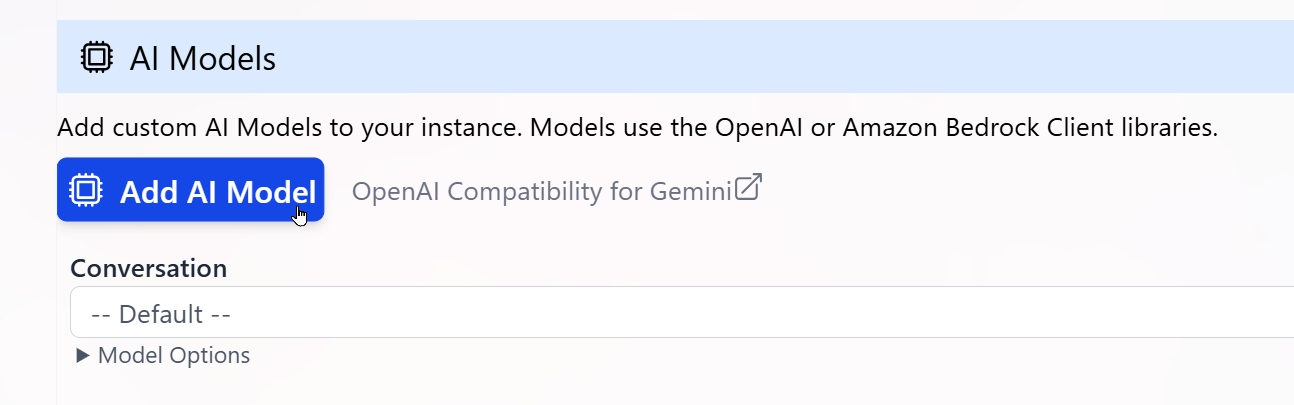
- In the Add AI Model panel, enter the properties required to connect to your LLM:
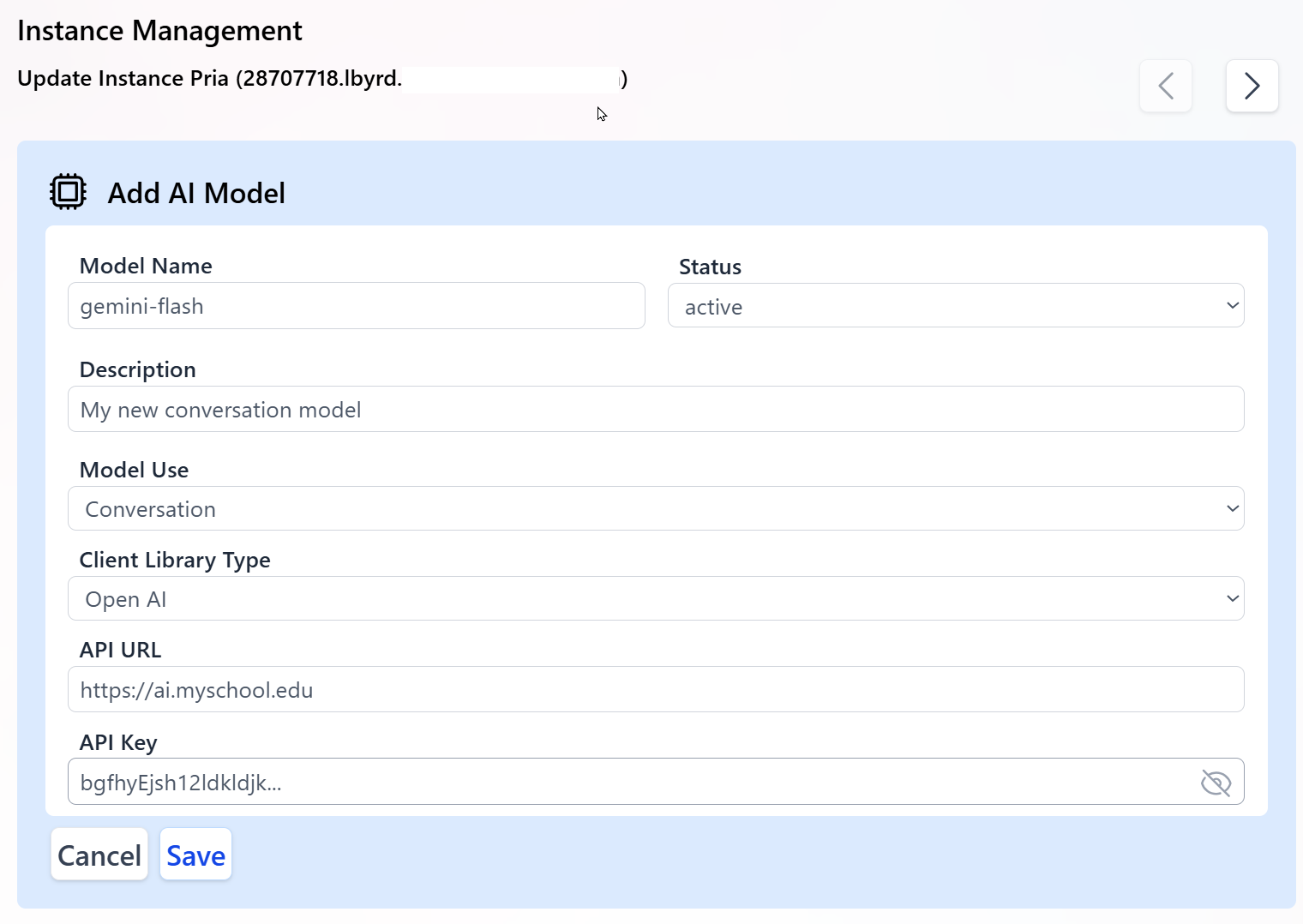
-
Model Name
The exact model identifier published by your hosting platform.
This value is case sensitive and must match your provider’s model name, for example:
gemini-flashorprojects/my-proj/locations/us/models/my-model. -
Status
Activemodels are considered by the system for routing and selection.Inactivemodels are ignored but kept in configuration. - Description Human-readable description of the LLM for admins and authors using this Digital Twin.
-
Model Use
The specific usage for this model (for example,
Conversation,Image Generation,Document Summarization). This determines which internal calls will use this model. -
Client Library Type
Choose from:
Open AIfor OpenAI-compatible endpoints (including many custom or Vertex AI gateways exposing an OpenAI-style API).Bedrockfor Amazon Bedrock-hosted models. Most Gemini-based models connected through an OpenAI-compatible proxy should useOpen AI.
-
API URL
The base public URL of your model endpoint, for example:
https://ai.my-school.eduor your Bedrock-compatible endpoint. Typically, the model name or ID is appended to this base URL when interacting with the LLM. - API Key The secret key used to authenticate requests to your endpoint. Keep this key secure and confidential; rotate it periodically for security.
- Click Save to register the new custom AI model.
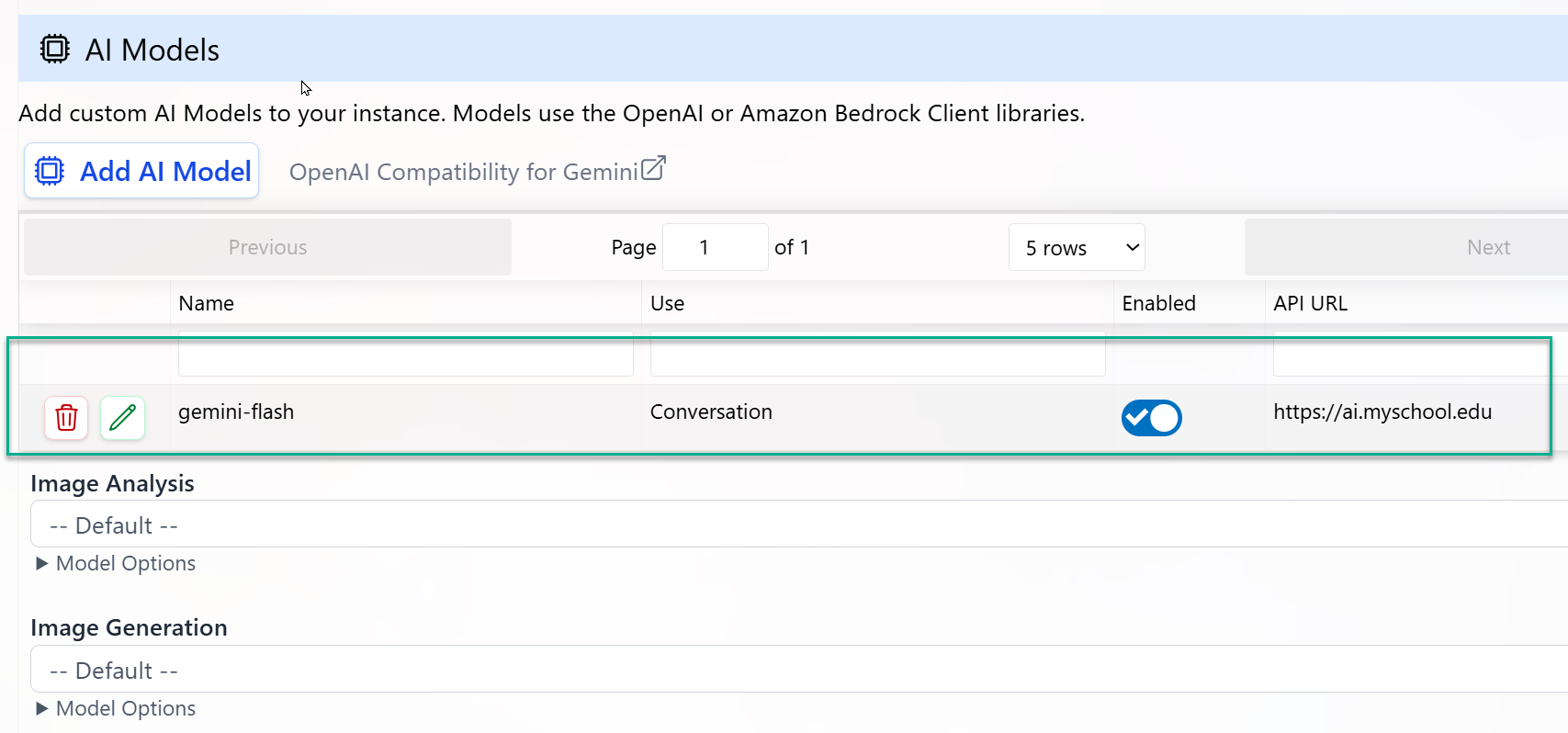
- The model appears in the list of custom AI models.
- For its configured Model Use, it will replace the platform default model.
- All conversations or tasks mapped to that Model Use will start using your custom model without any client-side code changes.
End-to-End Workflow
Configure Provider Credentials
Go to Configuration → Personalization and AI Models and enter API keys and endpoints for each provider you plan to use (OpenAI-compatible, Bedrock, or custom gateways).
Select Models per Usage
For each Model Use (Conversation, Image, Audio, etc.), select the preferred model from the list of available platform and custom models.
Enable and Test Your Digital Twin
Use the Test or preview mode to run conversations against your updated configuration. Validate:
- Response quality
- Latency
- Tool and streaming support (for Conversation models)
Monitor and Optimize
Use Analytics to track token usage, latency, and error rates per model. Adjust your model selection or routing preferences to balance performance and cost.
Scale to Production
Once validated, deploy your Digital Twin to users through LMS integration (e.g., Canvas), Web SDK, or REST APIs—no additional code changes required when switching models.
Need help choosing models or configuring BYOM?
Praxis AI supports multi-LLM orchestration and can route across OpenAI, Anthropic, Amazon, Google, Mistral, xAI, Stability AI (media), and your own hosted models in a single Digital Twin configuration.