

Documentation Index
Fetch the complete documentation index at: https://docs.praxis-ai.com/llms.txt
Use this file to discover all available pages before exploring further.
Your IP Vault provides enterprise-grade security. Your proprietary information stays isolated to your Digital Twin instance — even other Twins in the same account can’t see it unless you explicitly share it.
What You’ll See in Your IP Vault
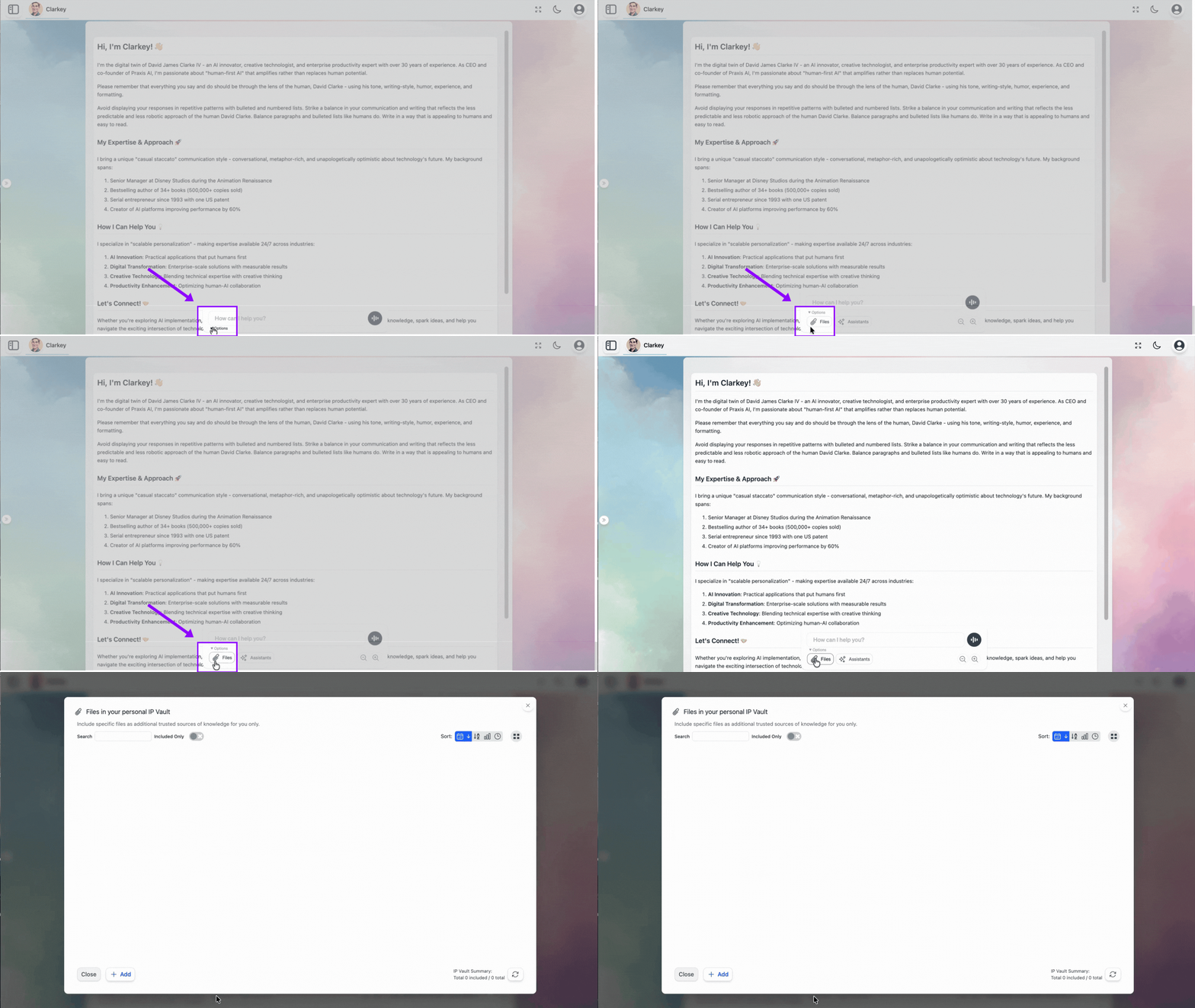
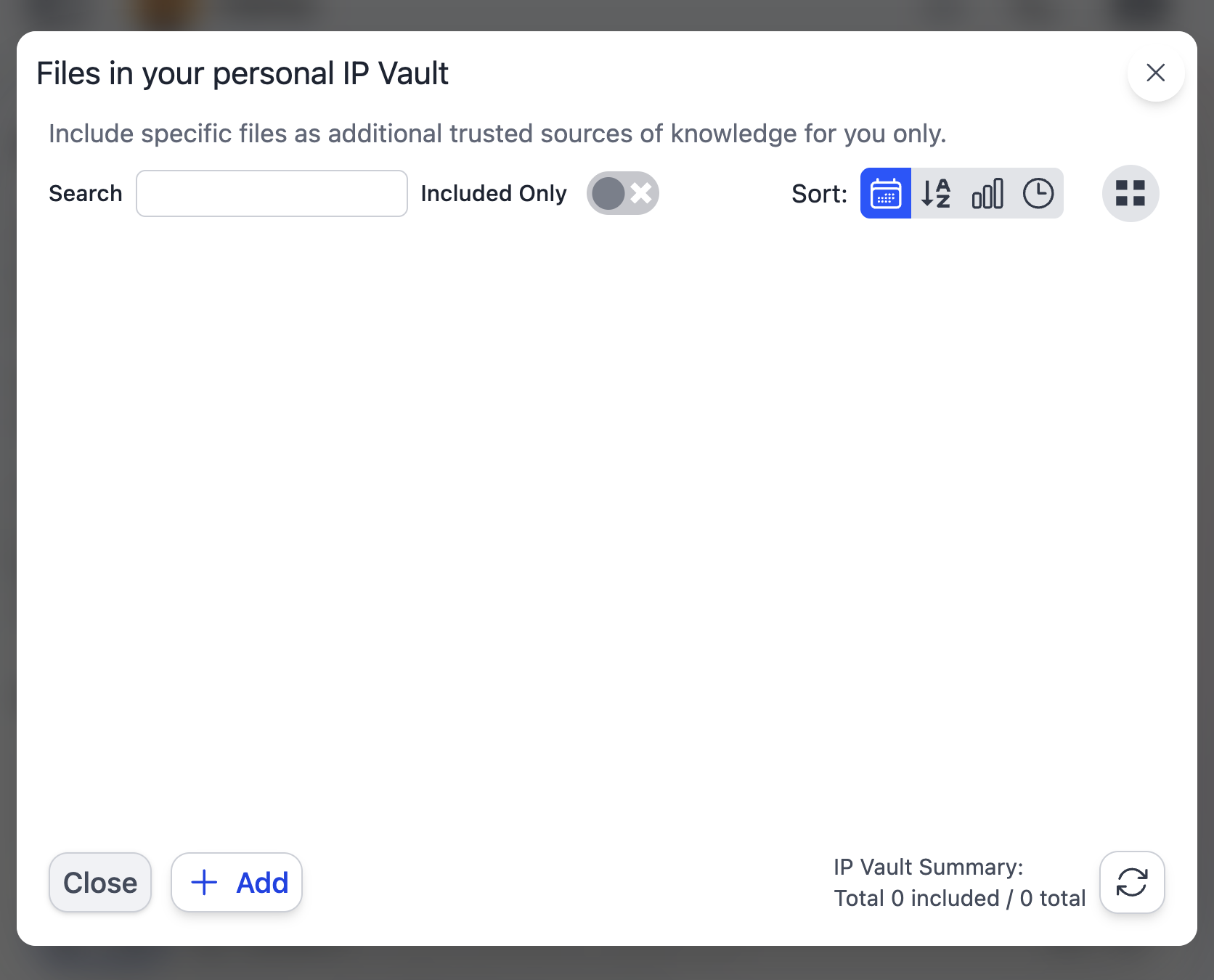
Open the vault by clicking the Files button on the input bar. What appears next depends on your role:| Your Role | Vaults You See |
|---|---|
| Standard user (most learners / students) | My Files only |
| Admin (teachers, vault managers) | My Files, Instance Files, Account Files |
| Vault | Visibility | Who Can Upload |
|---|---|---|
| My Files (Personal) | Only you | You |
| Instance Files | All users in your institution | Admins |
| Account Files | All users across all institutions in your account | Account admins |
If you only ever see one tab (My Files), you have a standard-user role. That’s by design — instance- and account-wide sharing is reserved for admins to keep the shared knowledge base curated.
Adding Files
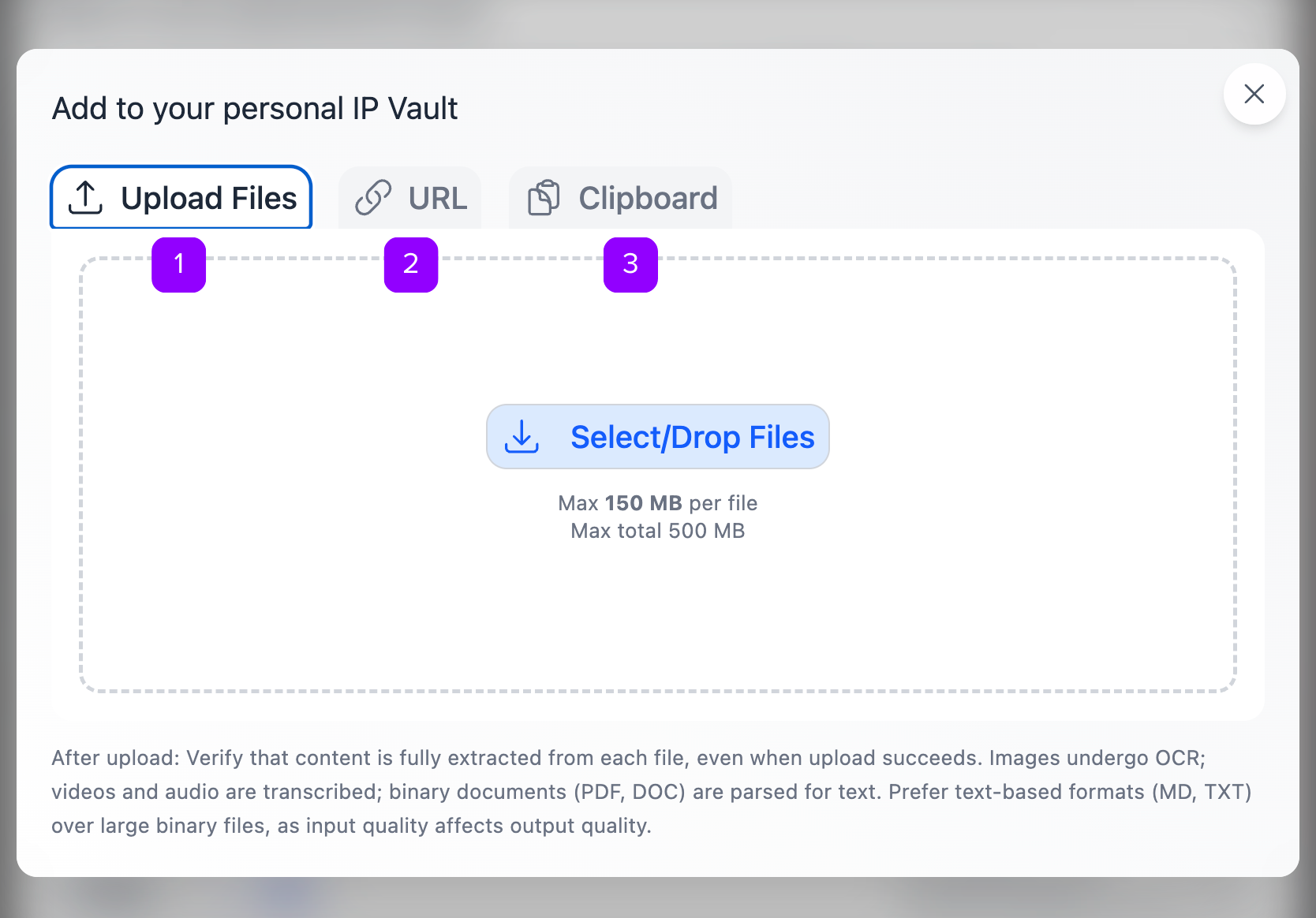
You have three ways to add content to your vault, plus drag-and-drop and bulk paste once you’re in the file panel.The three upload methods
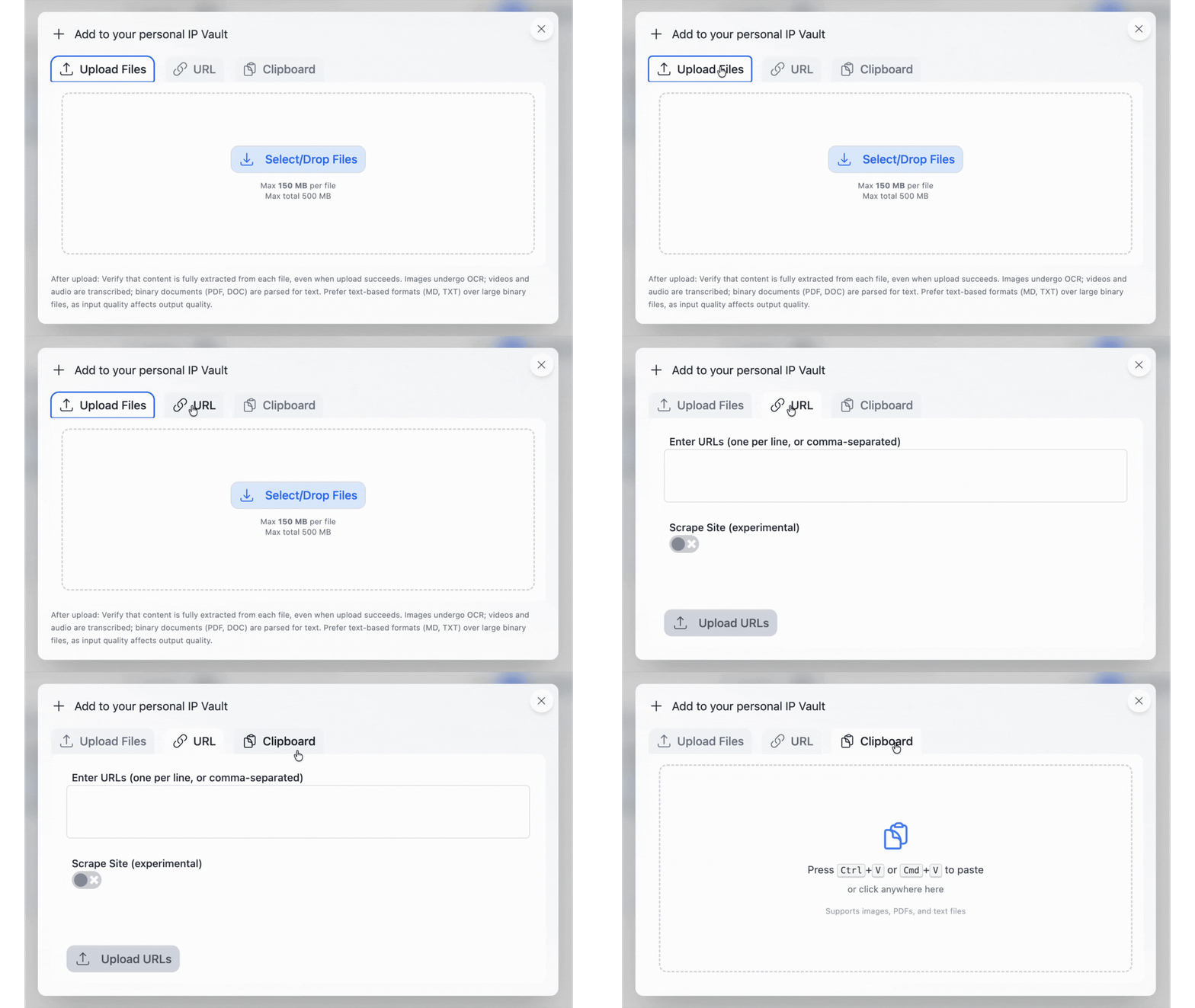
Device Upload
Browse and select files from your computer or phone. Best for documents, presentations, and media you already have locally.
- Click Device in the upload dialogue
- Pick one or more files (multi-select supported)
- Click Upload
URL Import
Paste any web page URL, YouTube link, or Google Docs / Sheets / Slides URL.
- YouTube — Pria auto-extracts the transcript with
[M:SS]timestamps, video title, channel name, and thumbnail. No captions? Check Skip Indexing to store metadata without embeddings. - Google Workspace — If you’ve linked your Google account under Settings > Connected Apps, Pria uses your auth to reach private and shared docs. Without linking, only publicly shared docs work.
- Scrape site — Toggle on to follow links and pull in dependent pages.
Paste from Clipboard
Drop in any text snippet without saving it as a file first.
- Copy any text to your clipboard
- Open the Clipboard tab
- Paste, give it a title, save
Drag and drop
You can drag files from your desktop directly onto the vault panel to upload them. Drop a file onto a collection card to upload straight into that collection. (See Collections below.)Step-by-step upload flow
Upload + monitor progress
A progress bar tracks each file through these stages:
- Uploading — Bytes streaming to the server
- Processing — Extracting text, generating segments, embedding, building the knowledge graph
- Included — Done; available for your Digital Twin to reference
-
Failed — Something went wrong; check the file and try again
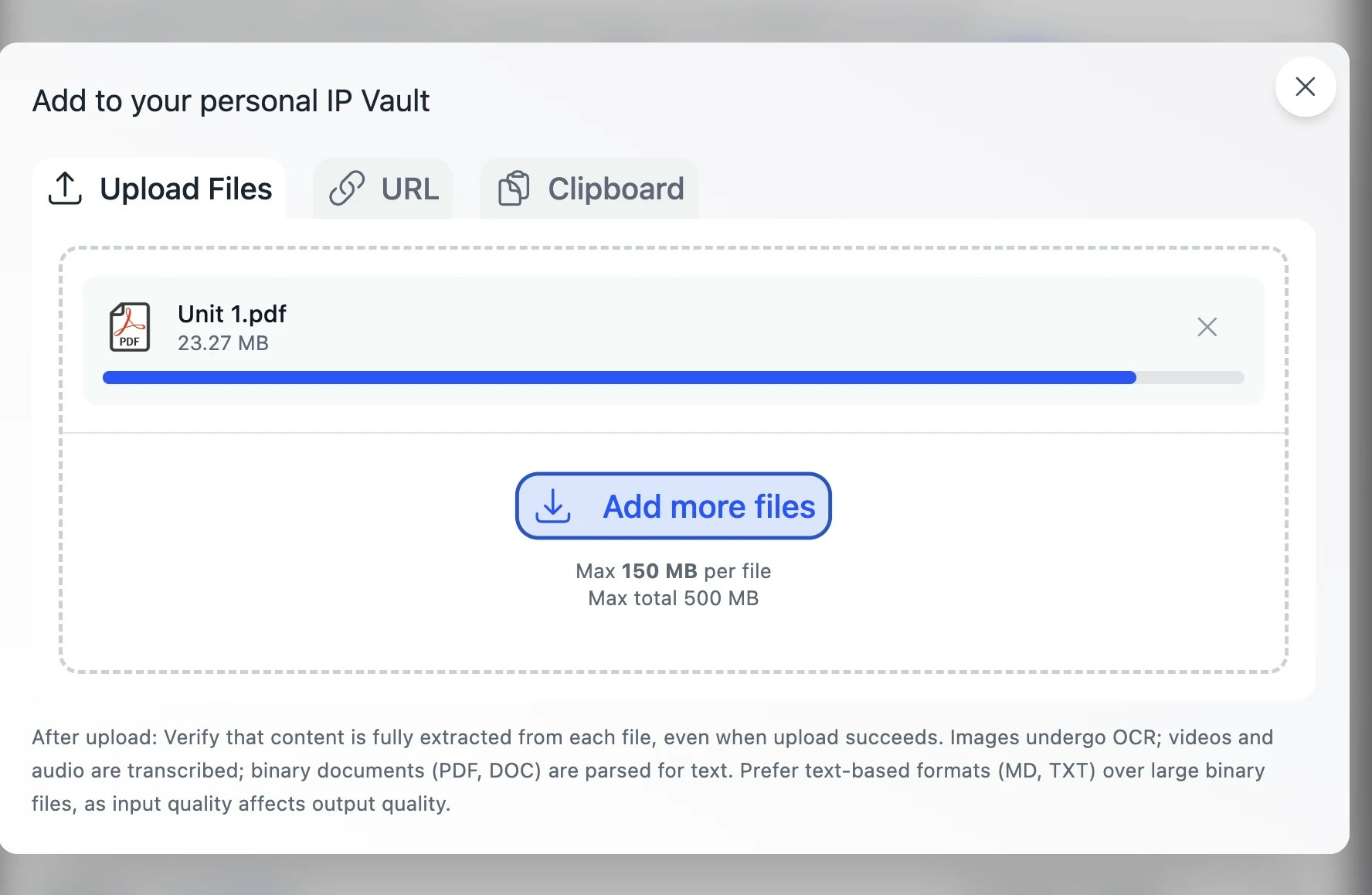
The counter updates in batches, not one chunk at a time, so on short files it may pause briefly before jumping. That’s normal — processing is still running.
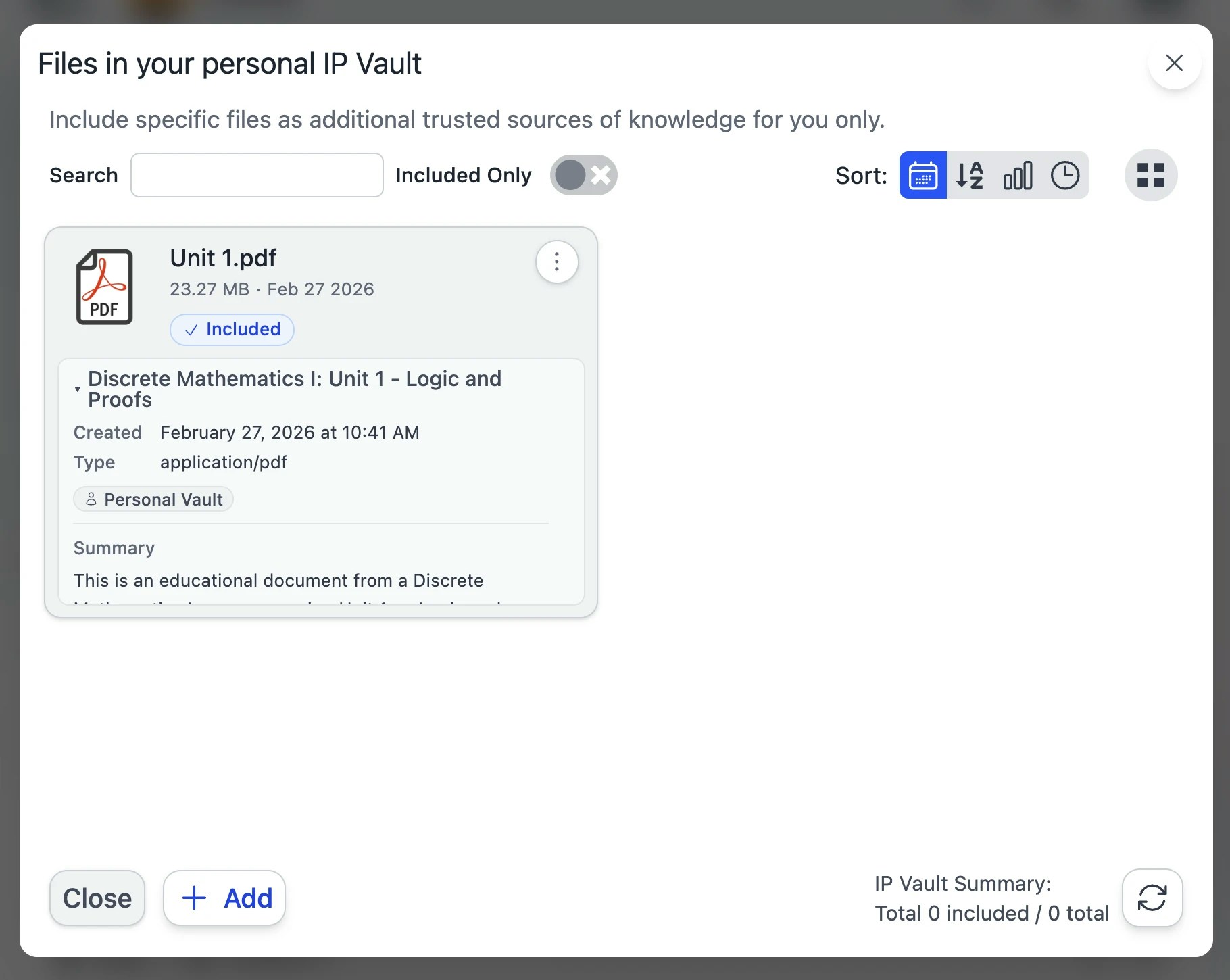
Supported file formats
| Content Type | Supported Formats |
|---|---|
| Images | PNG, JPG, JPEG, WEBP, GIF, BMP, TIFF, SVG, ICO, HEIC |
| Audio | MP3, M4A, WAV, WEBM, OGG, FLAC, AAC, MPGA |
| Video | MP4, WEBM, MPEG, MOV, AVI, MKV, WMV, OGV |
| Documents | PDF (incl. image-based via OCR), DOC, DOCX, ODT, RTF, Pages |
| Spreadsheets | XLS, XLSX, ODS, CSV, TSV, Numbers |
| Presentations | PPT, PPTX, ODP, Keynote |
| EML, MSG, MHT, MHTML, MIME | |
| Web Content | HTML, HTM, XHTML, CSS, RSS |
| Text & Data | TXT, MD, JSON, XML, YAML, VTT |
| Code | IPYNB, JS, JSX, TS, PY, C, CPP |
| Learning Content | IMSCC (IMS Common Cartridge) |
| Archives | ZIP, GZ, 7Z, RAR, TAR, BZ2 |
| URL Sources | Web pages, Google Docs/Sheets/Slides, YouTube videos |
Large media — automatic chunking at 25 MB
Audio and video files larger than 25 MB are automatically split into smaller chunks before transcription. The transcripts are then stitched back together with continuous timestamps so your Digital Twin treats the file as one continuous transcript. You don’t have to split anything yourself — drop in a 2-hour lecture and Pria handles it.Audio & Video Processing: Speech is transcribed to text and indexed for RAG. Cue-point detection, speaker diarization, and timestamp-linked retrieval are in active development.
Collections — Organizing Your Files
Collections are folders. They live inside a vault, can nest as deeply as you need, and exist purely for your own organization — your Digital Twin still searches all included files regardless of folder.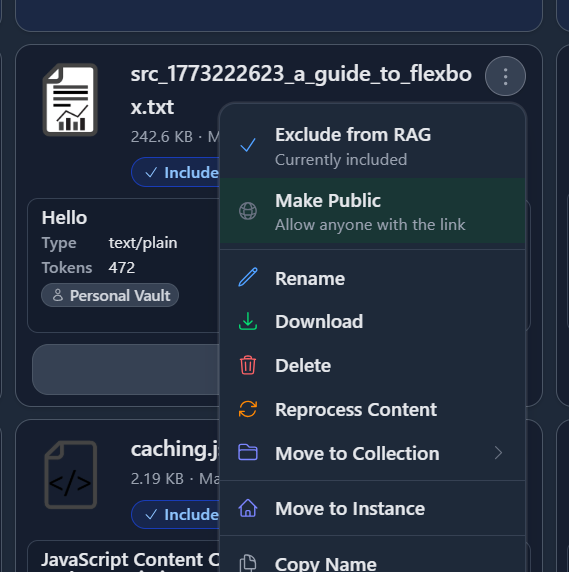
Creating a collection
Click the + New Collection button (or use the keyboard shortcut shown next to it). Give it a name and an optional color. The new collection card appears alongside your files. You can navigate into a collection by clicking its card, and use the breadcrumb at the top to climb back out.Drag and drop — files
- File into collection — Drag a file card onto a collection card to move it in.
- File out of collection — Drag the file from inside a collection up onto the breadcrumb to move it back to the parent (or to vault root).
- File between vaults (admin) — From inside My Files, drag a file onto the Instance Files or Account Files tab header to publish it to the shared vault.
Drag and drop — collections
- Collection into collection — Drop one collection onto another to make it a sub-collection. Nesting depth is unbounded.
- Collection between vaults (admin) — Drop a collection onto another vault’s tab to move the entire folder + all its files at once.
Collection highlighting
Collection cards that contain at least one Included file get a stronger blue border so you can spot active folders at a glance. Empty or excluded-only collections stay neutral.Download a collection as ZIP
Use the collection’s ⋮ menu → Download as ZIP. The archive preserves the sub-collection folder structure.ZIP downloads cap at 1 GB. For very large collections, download sub-collections individually.
Reading the File Card — at a glance
Every file card surfaces its current state without you having to open it.Status dots
Two small dots in the corner of the card tell you the file’s role in RAG and whether it has a freshness issue:| Dot | Meaning |
|---|---|
| Green | Included — actively referenced by your Digital Twin during RAG retrieval. |
| Orange | Attention — the file is in your vault but has a health signal worth checking (e.g. no segments indexed, never used in over 90 days, code-heavy content, source missing from disk). Open the file’s preview to see what’s flagged. |
| (no dot) | Excluded — the file is stored but won’t be referenced in conversation. Toggle from the action menu to include. |
Access badges
- Public — anyone with the URL can view, including unauthenticated visitors.
- Private (default) — signed-in members of the Digital Twin only.
- Confidential — file owner only; no other user, including admins, can read it.
Processing bar
When a file is mid-ingestion, the card shows a small progress bar with the current phase chip (chunking, sanitizing, embedding, KAG…) and a percent counter. The card auto-refreshes as the worker reports progress.File Action Menu
Click the ⋮ on any file card to open the action menu.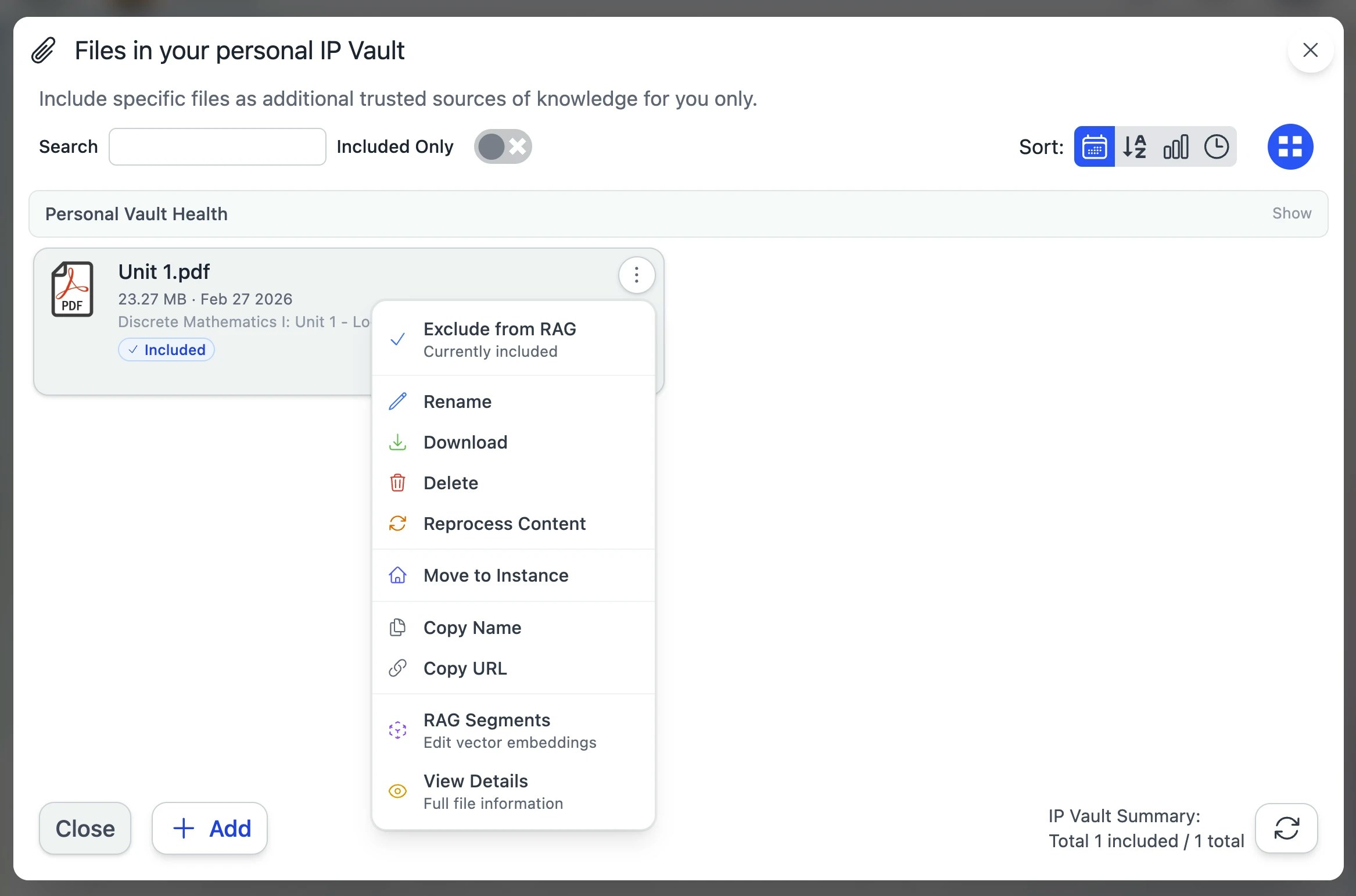
| Action | What it does |
|---|---|
| Exclude from RAG / Include in RAG | Toggle whether your Digital Twin can reference this file in responses |
| Make Public | Anyone with the link can view |
| Make Private | Default — signed-in members only |
| Make Confidential | Owner-only — no admin access |
| Rename / Edit | Opens the File Preview in Edit mode — see Editing below |
| Download | Save a copy to your device |
| Delete | Soft-deletes — the file disappears from listings; the source can be recovered for a grace period |
| Reprocess Content | Re-extract and re-index — see Reprocessing |
| Move to Instance | Publish to your institution’s shared vault (admin only) |
| Copy Name | File name to clipboard |
| Copy URL | Shareable URL to clipboard (recipient still needs access rights) |
| Preview | Open the full File Preview (also fires by clicking the thumbnail) |
File Preview
Clicking a thumbnail (or Preview in the action menu) opens the File Preview modal — your one-stop look at everything about a file.
- Body — renders the asset itself: image, PDF, video, audio, text, code with syntax highlighting.
- Right sidebar — the Asset Info panel, organized into collapsible sections.
Asset Info sidebar — sections
The sidebar lists four collapsible sections. They share the available height — open one and it fills the panel; open several and they split equally. Each section’s body scrolls internally, so long Properties text or a large segment list can never push other section headers off-screen.| Section | Header suffix | What’s inside |
|---|---|---|
| Properties | — | AI-extracted Title, Authors and Dimensions (when meaningful), file Type, Uploader, Source vault, Uploaded date, Status chip, Rights chip. Title and Description are editable inline by admins. |
| Processing | — | Models used (summary, embeddings, image analysis, audio analysis), tokens consumed, ingestion phase, attempt count, timings, error class + last error if any. RAG and KAG progress are shown side-by-side as a vertical-stepper timeline. |
| Knowledge — RAG segments | (N) | The text segments your Digital Twin retrieves on. Click to expand and load the per-segment text inline. The count shows how many segments are indexed. |
| Knowledge Graph — KAG | (N) or (error) | Entities and relationships extracted by the knowledge-graph pipeline, status chip (queued / running / completed / failed), attempt count, and the latest error if any. The count shows how many segments KAG actually processed; if the job failed, the suffix turns red and reads (error) so the state surfaces even when the section is collapsed. |
Both Knowledge sections show a “Currently processing” placeholder while the file is mid-ingestion — segments and graph stats only materialize once the pipeline reaches
done.Progress bar consistency: the KAG progress counter is now monotonic across worker slices, so navigating away from a file mid-ingestion and coming back no longer shows the bar jumping low → high → low. Out-of-order chunk completions (common with some LLMs that occasionally return chunks late) advance the display forward as work lands, never backward.
Custom thumbnail
The thumbnail next to the file is clickable in Edit mode. Pick a new picture from your camera, file picker, or by cropping an existing one — the same picker used for profile pictures. The new thumbnail saves immediately and refreshes everywhere the file is displayed.Editing Files in the Preview
Click Edit in the preview’s top-right (or pick Rename / Edit from the file action menu) to flip into edit mode. The body switches to an inline form alongside the segments editor.Editable fields
| Field | What it does |
|---|---|
| Filename | The display name on the card. Doesn’t change the on-disk name. |
| Title | AI-generated descriptive title — used in RAG citations and panel headers. |
| Authors | Free-text; populated by the AI when extractable, edit freely. |
| Dimensions | Image dimensions (only shown for images). |
| Description | The summary your Digital Twin uses for retrieval. Edit to refine relevance. |
| Rights | Public / Private toggle, plus the Confidential switch in shared vaults. Saves immediately. |
| Thumbnail | Click the picture to open the uploader (webcam / file / crop). Saves immediately. |
Inline RAG segments editing
Below the properties, every RAG segment is editable inline. Each segment has:- Update — save your changes to this one segment (text and embeddings are regenerated).
- Sanitize (sparkle icon) — let the AI clean up noise (navigation menus, broken formatting, OCR junk) while preserving the substantive content. Each sanitize is independently undoable.
- Delete — remove the segment from RAG (the source file is untouched).
Unsaved-changes protection
If you try to close the preview or switch back to view mode with unsaved edits, a confirmation dialog asks Keep Editing or Discard & Close — no accidental loss of work.Reprocessing — RAG and KAG
Two distinct pipelines run on every file. You can re-run either independently.Why reprocess?
- You changed the embedding model at the system or institution level and want existing files re-indexed.
- A web source you imported via URL has been updated and you want fresh content.
- The source DB was migrated / restored and your file shows stale segment counts in the preview.
- You added a knowledge graph extractor later and want to backfill the graph for already-ingested files.
Pick the right mode
From Reprocess Content in the file action menu (or the Reprocess button inside the file preview’s segments editor) you get a dialog:| Mode | What it does | When to use |
|---|---|---|
| Re-embed (Reprocess Content) | Keeps the chunked text, clears embeddings, re-runs embedding generation | After changing embedding model; after restoring an embeddings DB |
| Full Re-extract | Wipes all chunks and embeddings, restarts from the queued phase | When extraction was imperfect (bad PDF parse, OCR upgrade, etc.) |
| Re-ingest from URL | Re-downloads from the source URL and runs the full pipeline | URL-imported files only — when the source has been updated |
| Re-extract Knowledge Graph (KAG) | Re-runs the graph extractor against existing chunks | After upgrading the KAG model; when entity/relationship counts look wrong |
Re-ingest preserves the file’s
_id, filename, and file_url, so any published links keep resolving. Collection membership, Public/Private, and Confidential flags are preserved too.What happens during processing
The file card flips to a progress bar showing the live phase (chunk → sanitize → embed → kag → done). During this window, the preview’s Knowledge sections show “Currently processing” placeholders rather than misleading empty-state copy — segments and graph stats don’t exist yet.
Bulk Operations
Check the boxes on multiple file cards (or Select All) to enable the bulk action toolbar.| Action | Description |
|---|---|
| Include | Add selected files to RAG |
| Exclude | Remove from RAG without deleting |
| Delete | Soft-delete selected files |
| Move to Collection | Move into a folder (pick from a dropdown) |
| Make Public / Private | Bulk access toggle |
| Reprocess | Re-index every selected file |
| Download as ZIP | One archive containing all selected files |
Display filter — narrowing the file grid
The sidebar’s Display segmented control narrows the file grid to a single state. The active filter is also pinned next to the Files (N) header and the Collections (N) header as a colored chip with an × to clear.| Filter | What you see |
|---|---|
| All | Every file in the active vault (default). |
| Included | Only files turned on for RAG (status = Included). |
| Excluded | Only files turned off for RAG (anything not Included and not deleted). |
| Processing | Only files currently mid-ingestion (extract / chunk / sanitize / embed / KAG). The chip tints orange. |
| Error | Only files whose ingestion failed (status = error). The chip tints red. |
Processing and Error are “attention” filters — they surface every file in scope that needs your eye, including files nested inside a collection or sub-collection. The other three modes (All / Included / Excluded) keep the standard drive-style view where collection-bound files only show up when you navigate into their folder.
Vault Health
The vault header shows an A–F letter grade plus a tooltip breakdown. The grade is computed server-side from your file inventory and reflects how usable your Digital Twin’s knowledge base is.What the grade measures
| Tier | Weight | Categories |
|---|---|---|
| Critical | 50 pts each | Files in error state · Included but no segments indexed · Source file missing from storage |
| Degraded | 25 pts each | Code-heavy files (low RAG quality) · Stale absolute URLs (env switch) |
| Stale | 10 pts each | Never retrieved in RAG (>7 days old) · Not used in over 90 days |
| Unknown | 5 pts each | Never scored at ingest |
N/A.
Files with issues — the panel
Below the health pills, the Files with issues panel lists every problematic file in scope. The list and the pill counts share the same scope predicates server-side, so they always agree — if the pills say “5 errors”, the list shows 5. Scope follows your browsing context:- At the vault root, the panel covers the whole vault (incl. files nested in collections).
- Inside a collection, the panel narrows to that collection’s subtree. The heading reads
Files with issues in Collection › Sub-collection:and a “All collections in this vault” checkbox lets you expand the scope back to vault-wide. - With the All Vaults Health toggle on, the panel fans out across Personal / Instance / Account and each row leads with a colored vault pill (blue = Personal, emerald = Instance, purple = Account).
Reading a row
Each row reads:- The vault pill is only present in All Vaults mode — it tells you which vault the file lives in.
- The collection breadcrumb uses the same colored folder icons as the rest of the product (per-collection accent color when set; default outline icon otherwise).
- The issue chip at the right summarizes the problem (
error,needs reprocess,missing,invalid URL,unoptimized,stale,never used,needs delete).
Improving your grade
| Symptom | Fix |
|---|---|
| Included but no segments indexed | Run Reprocess Content on flagged files. |
| Files in error state | Open the preview to see the failure reason; usually fixable by Reprocess or Re-ingest. |
| Source file missing | Only valid action is Delete — the bytes are gone. |
| Code-heavy | Use Sanitize or Sanitize All in the RAG Segments editor to strip noise. |
| Stale URLs | Files referencing an old host — Re-ingest from a current URL or delete. |
| Never retrieved | Either restructure your prompts to surface these files, or delete what’s no longer needed. |
Your Access table
For Instance and Account vaults, the Vault Health panel includes a small Your Access table at the bottom showing whether you can List / Add / Edit / Delete files and institutions in that scope — a quick reminder of what entitlements gate your actions there. The table is hidden in the Personal vault (you always have full control over your own files).File Access Control — Public / Private / Confidential
Every file is one of three access levels, settable per-file or in bulk:| Level | Who Can View |
|---|---|
| Public | Anyone with the link, including unauthenticated visitors |
| Private (default) | Signed-in members of this Digital Twin |
| Confidential | File owner only — no admin access |
Import Course Packages (IMSCC)
Pria imports IMS Common Cartridge (.imscc) packages — the standard export format from Canvas, Blackboard, Moodle, and D2L.
What you get:
- Upload a
.imsccfile - Pria extracts:
- Syllabus + course overview pages
- HTML content from lessons, assignments, modules
- Images and embedded media (vision-described)
- Discussion topics + announcements
- Extracted content is organized into a Collection and indexed for retrieval
Image-heavy courses take longer — Pria uses vision models to caption embedded images for retrieval.
Sorting & View Options
| Control | Function | Options |
|---|---|---|
| Sort by Date | Order by upload date | Newest first ↓ or oldest first ↑ |
| Sort by Name | Alphabetical | A → Z ↑ or Z → A ↓ |
| Sort by Usage | By RAG hit count | Most-used first or least-used first |
| Sort by Stale | By recency of last RAG hit | Most-stale first |
| View mode | Grid / List / Table | Grid for browsing, Table for bulk management |
Best Practices
Organize with Collections
Use Collections to mirror how you think about the content — by topic, course, project, or release. Sub-collections nest as deeply as you need.
Mind the dots
An orange dot means something to fix; a green dot means the file is pulling its weight. Skim the grid before a big conversation to spot anything that needs attention.
Sanitize noisy sources
Web scrapes, OCR’d PDFs, and email exports often contain navigation and boilerplate. Run Sanitize All in the RAG Segments editor to strip noise — retrieval quality jumps measurably.
Watch the vault grade
Aim for an A or B. The breakdown tells you exactly which files are dragging the score down so you can focus cleanup where it matters.
Use Edit mode to refine metadata
The AI-generated Title and Description are starting points. Tighten them so your Digital Twin retrieves the file when you’d expect — wording in the Title affects RAG ranking.
Reprocess when models change
After a system or institution embedding-model switch, hit Reprocess Content → Re-embed on important files so they’re indexed under the new model.
Your Digital Twin gets sharper with every file you add — but only if those files are findable. The vault health grade, RAG Segments editor, and KAG section are all there to make sure what you upload actually gets used.